Connecting Claude
Screenshots (1)
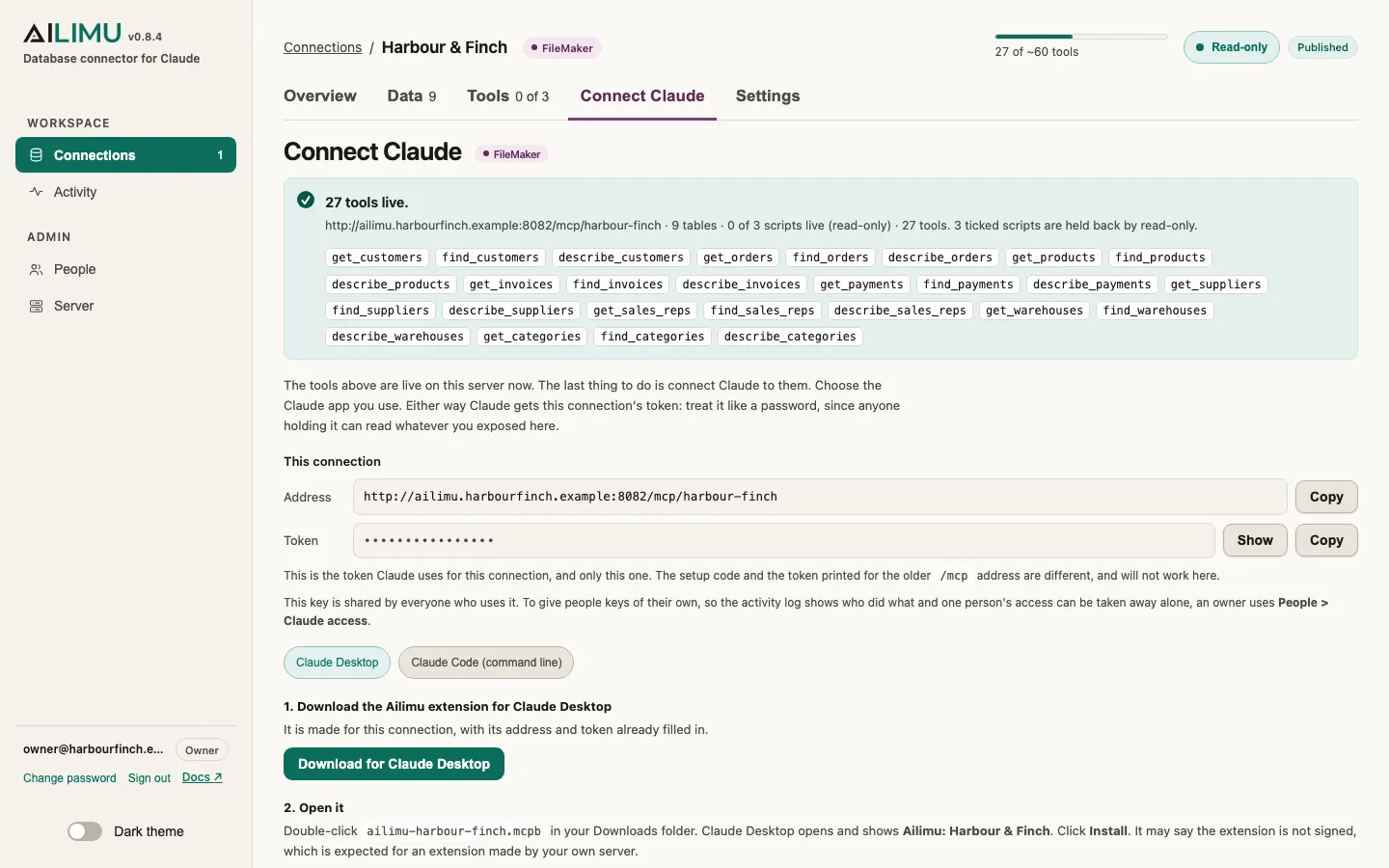
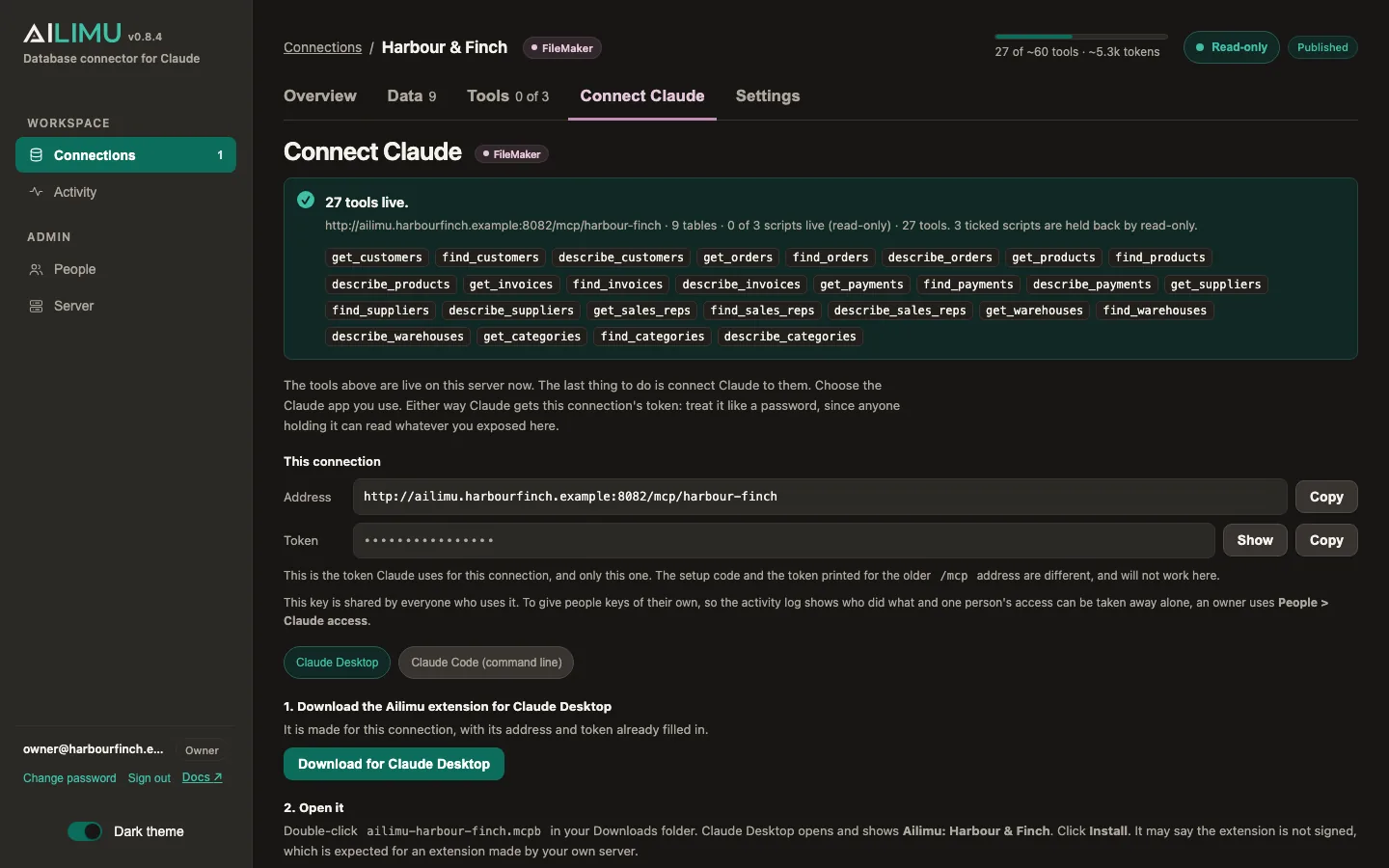
After publishing, the wizard's last step, Connect Claude, shows everything below with your own address and token filled in. This page is the same thing, for reference.
- Claude Desktop, which most people use
- Claude Code, the command-line tool
The address
Each profile has its own endpoint and its own token:
http://your-server:8081/mcp/<profile>
The bare /mcp also works when the connector holds exactly one profile, which is
why an install that predates profiles keeps working.
The token grants access to whatever you exposed. Treat it as a password. A different profile's token will not open this one.
If Claude runs on another machine, localhost will not do: use the server's LAN
address or hostname, and make sure the port is reachable.
Claude Desktop
Most people connect with Claude Desktop. The easiest way is the Ailimu extension, which the wizard makes for each connection.
- In the wizard, open the connection and go to its last step, Connect
Claude. Choose Claude Desktop and click Download for Claude
Desktop. You get a file named like
ailimu-sales.mcpb. - Double-click the file. Claude Desktop opens and shows Ailimu: Sales with the address and token already filled in. Click Install. Claude Desktop may say the extension is not signed: that is expected for an extension made by your own server.
- Start a new chat. The connection is listed under Settings > Extensions, and its tools are available in the chat.
- Delete the downloaded file. It contains the token, which Claude Desktop now keeps in your system keychain.
If Claude Desktop runs on a different computer from Ailimu, change the address
in the install form from localhost to the server's network name or address.
You can change the address or token later in Settings > Extensions.
Downloading the extension needs an editor or owner, because it carries the connection's token.
Two things that do not work. Pasting Ailimu's address into Settings > Connectors fails: connectors are reached from Anthropic's cloud, which cannot see a server on your network. And an entry with
"type": "http"inclaude_desktop_config.jsonshows as not connected: that format is Claude Code's, and Claude Desktop's config file only runs programs on your computer.
Personal access: a key for each person
The better way to give several people Claude access. Each person gets a key of their own, so the activity log shows who did what, and one person's access can be taken away without affecting anyone else.
- An owner invites the person from People. Someone who only uses Claude, and not the setup wizard, gets the Claude user role.
- On that person's row, the owner clicks Claude access and ticks the connections they may use. Read only limits them to reading, even on a connection that allows changes: their Claude gets no update or script tools.
- The person opens their invite link, chooses a password, and signs in. They see My Claude access, with each connection they may use, and click Download for Claude Desktop. The extension carries their own key.
- They double-click it, click Install, and delete the file.
The owner never handles anyone's key. To take access away, untick the connection or remove the person: their key stops working at once. Reset key gives someone a new key, for example after losing a laptop; they then download their extension again.
Anyone with an account can be given personal access this way, editors and owners included. It works alongside the shared key below, which stays as it is.
Sharing it with your team
The extension file from the Connect Claude step can be passed on: anyone who installs it in their own Claude Desktop gets the connection. This still works, but personal access is usually the better choice. Two things to know first.
Everyone shares one key. The file carries the connection's token, and every copy uses the same one. So:
- The activity log records all of them as Claude, and cannot tell you which person asked for what.
- You cannot take access away from one person. Deleting the connection and creating it again gives it a new token, which stops every copy at once, and you then hand out a new file to everyone who should still have it.
- Everyone gets exactly what the connection exposes, including changes and scripts if read-only is off. To give some people less, make a separate connection for them.
This suits a small team you trust. Share the file privately, as you would a password, and ask people to delete it once installed: Claude Desktop keeps the token in their system keychain.
Download it from the address your colleagues will use. The file carries
the address you opened the wizard on. Downloaded from http://localhost:8081,
it only works on the Ailimu server itself. Open the wizard at the server's
network name or address instead, such as http://ailimu-server:8081/admin/,
then download it, and the file carries an address everyone on your network
can reach. If a file already went out with the wrong address, each person can
correct it in the install form, or later in Settings > Extensions.
By hand, without the extension
Use this if you cannot install extensions. It needs
Node.js on the computer running Claude Desktop, and runs
the mcp-remote program to reach Ailimu.
- In Claude Desktop, open Settings > Developer > Edit Config. That opens
claude_desktop_config.json. - If the file is empty or only has
{}, replace it with this. Use your own address, token and connection name (saleshere):
{
  "mcpServers": {
    "sales": {
      "command": "npx",
      "args": [
        "-y", "mcp-remote",
        "http://your-server:8081/mcp/sales",
        "--allow-http",
        "--header", "Authorization:${AILIMU_TOKEN}"
      ],
      "env": { "AILIMU_TOKEN": "Bearer YOUR-TOKEN" }
    }
  }
}
- If the file already has an
"mcpServers"section, add only the"sales": { ... }entry inside it, with a comma after the entry before it. Pasting the whole block into a file that already has content is the usual cause of a JSON error. - Quit Claude Desktop completely (Cmd+Q on a Mac, Quit from the tray icon on Windows) and open it again. Closing the window is not enough.
--allow-http is needed while Ailimu is on plain http://. Leave it out once
Ailimu is behind HTTPS. The wizard's Set it up by hand instead section
shows this block with your address and token already in it, and a button to
copy it.
Claude Code
Claude Code is Anthropic's command-line tool for developers. It is a separate app from Claude Desktop, and it can talk to Ailimu over HTTP directly:
claude mcp add --transport http sales http://your-server:8081/mcp/sales \
  -H "Authorization: Bearer YOUR-TOKEN"
Then type /mcp in Claude Code. You should see sales connected, with the number
of tools the wizard reported.
What the agent receives
A table called invoices, a saved search called unpaid and a script exposed as recalculate_totals produce:
| Tool | What it does |
|---|---|
get_invoices |
One record by its identifier. Every readable field. |
find_invoices |
Search. Returns the identifier plus the searchable fields, and the total match count. |
describe_invoices |
The fields a search cannot filter on, and how this table links to others. |
update_invoices |
Change a record. Only exists when writes are enabled and read-only is off. |
search_unpaid |
One saved search: a question set up in advance, with its own conditions and blanks. Read-only, and exists even when read-only is on. |
recalculate_totals |
One exposed FileMaker script. Only exists when read-only is off. |
A saved search is one more tool, search_ and its name. It asks a fixed question
with a few blanks for the agent to fill in, so the answer is small and the
question is asked the same way every time. See Saved
searches.
Each tool carries a description built from your FileMaker field comments, the row count captured at discovery, the syntax each parameter accepts, and: for a foreign key: the name of the tool that resolves it. That description is why the agent selects the correct tool rather than guessing.
Searches accept more than equality:
| You want | Write |
|---|---|
| On or after a date | >=2024-03-01 |
| Between two dates | 2024-03-01..2024-03-31 |
| Greater than a number | >1000 |
| Text containing | smith |
| Text exactly | =Smith |
| An identifier, partially | ~a1b2 |
Criteria combine with AND. A search returns 25 rows unless you ask for more (up to 500), along with the total number of matches.
A search can only filter by the fields ticked Search in the wizard. A field
that is only readable can be returned with the fields option but not used to
filter. If a search names a field that cannot filter, it is refused with a list
of the fields that can, instead of quietly returning every row. Calculated
fields such as lookups are not searchable by default, because they can be slow
to search: tick Search on the few people ask by (a loading list name, a
customer) in the Data step (Data → Tables once published).
How big the answers are
Everything Claude reads through Ailimu is counted against the person's Claude usage, so answers are kept small:
- Fields that are empty are left out, and the answer says so. A field missing from a row means it holds nothing.
- A long piece of text in a search is cut after 500 characters, with a note on how
much was cut. Fetching the one record (
get_) returns it in full. - A search that returns seven rows or more is written as a table: the field names
once, then each row as a list of values in that order, with
nullwhere a field is empty. On a long listing the names are about half of every row, so this roughly halves the answer. A few rows, and a single record, stay as labelled objects. - One answer is at most about 40 KB (roughly 10,000 tokens). If a search would be bigger, the rows that fit are returned and the answer says how many were left out, so Claude can narrow the search.
The tools describe themselves briefly as well: how to search a table (text, ids, dates, numbers) is said once in that table's search tool, not repeated on every field, which shortens the list Claude is sent on every request by about a third.
These limits can be changed with settings in the server's .env file. See
the reference.
Going back to the earlier, larger answers
If a client has trouble with the smaller answers, switch them off for the whole server. This brings back the earlier answers and the earlier tool descriptions exactly as they were.
Open the
.envfile that sits next to yourdocker-compose.yml.Add this line (or change it, if it is already there):
COMPACT_RESULTS=offApply it. A restart is enough, no pull is needed:
docker compose up -dStart a new session in your client, so it reads the tool list again.
To go back to the smaller answers, set COMPACT_RESULTS=on, or delete the line,
and run the same command again. This applies to every connection on the server;
there is no setting for it in the setup wizard.
After you republish
The server updates immediately; a connected client does not. Start a new session.
You do not need to run claude mcp add again.
Several files at once
Two profiles means two entries in your client config, each with its own URL and token. Prefer a single profile with Run scripts from set when what you actually have is one solution split into a data file and an interface file: see the wizard.